12 Questions Every First Time Linux User Has
Hello, and welcome to Matching Brackets.
My name is Joe, and I'm on my own Linux learning journey. I started this channel to help new Linux users better understand Linux so they can make an informed decision about whether switching to Linux is right for them.
A lot of people are curious about Linux, but they don't switch because they think it's too complicated, too risky, too scary, or too technical. In this blog post, and the accompanying video as well, I want to answer come of the questions that first-time Linux users actually have and walk you through what switching to Linux really looks like.
Maybe this video, and this blog post will ease some of your concerns. So, if you're ready to learn a little Linux, let's get started.
What Does It Actually Mean To "Switch To Linux?"
When you bought your computer, it already came with either Windows or macOS installed. Switching to Linux means replacing Windows or macOS with a Linux distribution. Or installing Linux alongside Windows or macOS in a dual-boot setup.
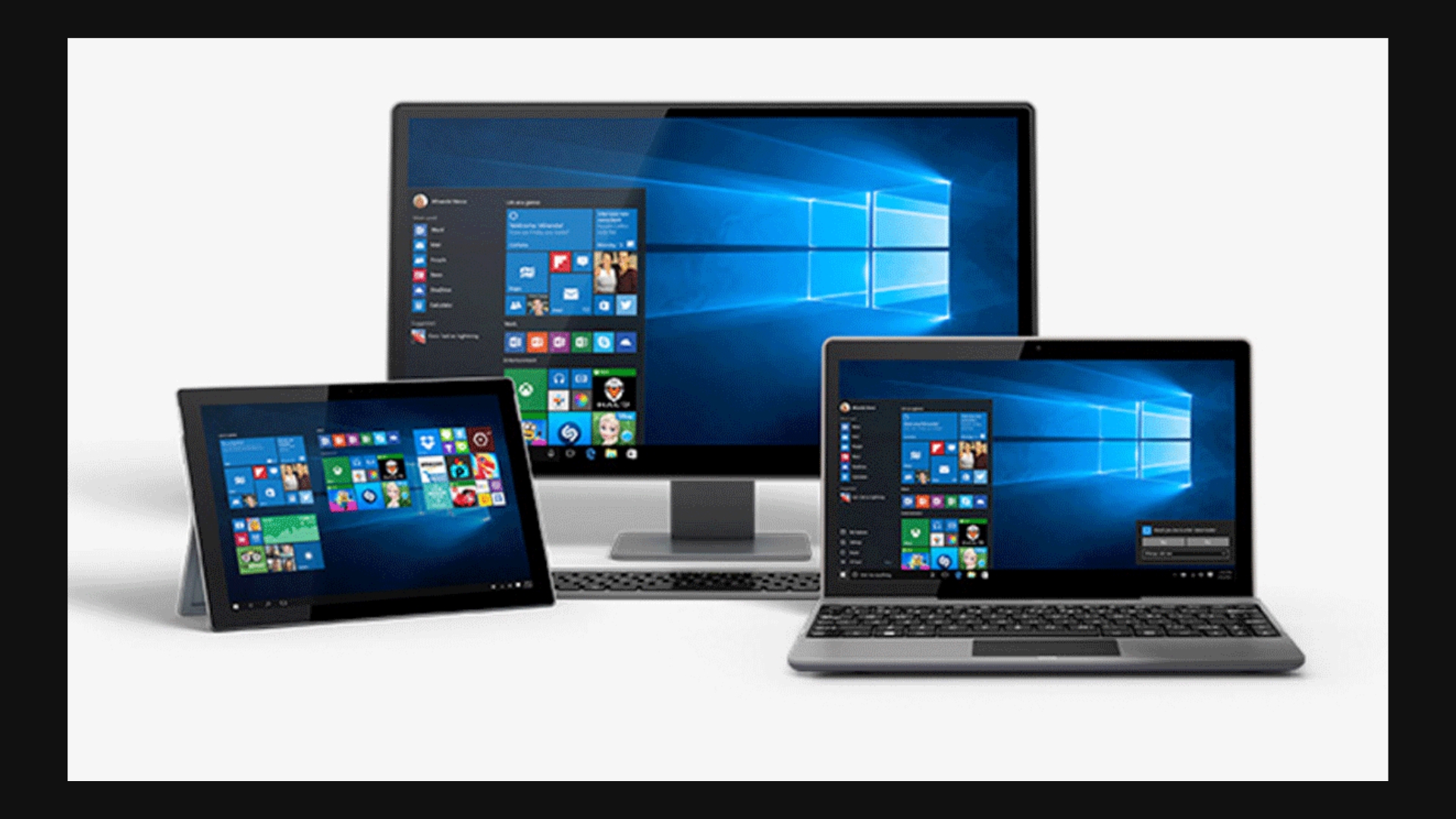
Whether you wipe out Windows or Mac altogether, or keep them in a dual-boot setup, before doing any of this, you'll need to do some preparation first. You should back up all your files and create recovery media for your original operating system. That way, if Linux doesn't work out for you, you can always go back.
That's really what "switching to Linux" means: You're either replacing your current operating system with Linx, or you're making room for Linux beside your current operating system.
Can Linux Run My Games?
That is going to depend on the games you play. The easiest thing you can do to find out for sure is to do a little research. You can always google: "Can Linux run (your game here)?"
Some games work perfectly on Linux. Others work with a workaround. And some games, especially game with certain anti-cheat systems, may not work at all.
For example, I just did a quick Google search and I found out fairly quickly that Fortnite currently doesn't work on Linux. This is something that you'll need to research before switching if Fortnite is your game of choice. There's no point in switching to LInux if it cannot run the games that you care the most about.
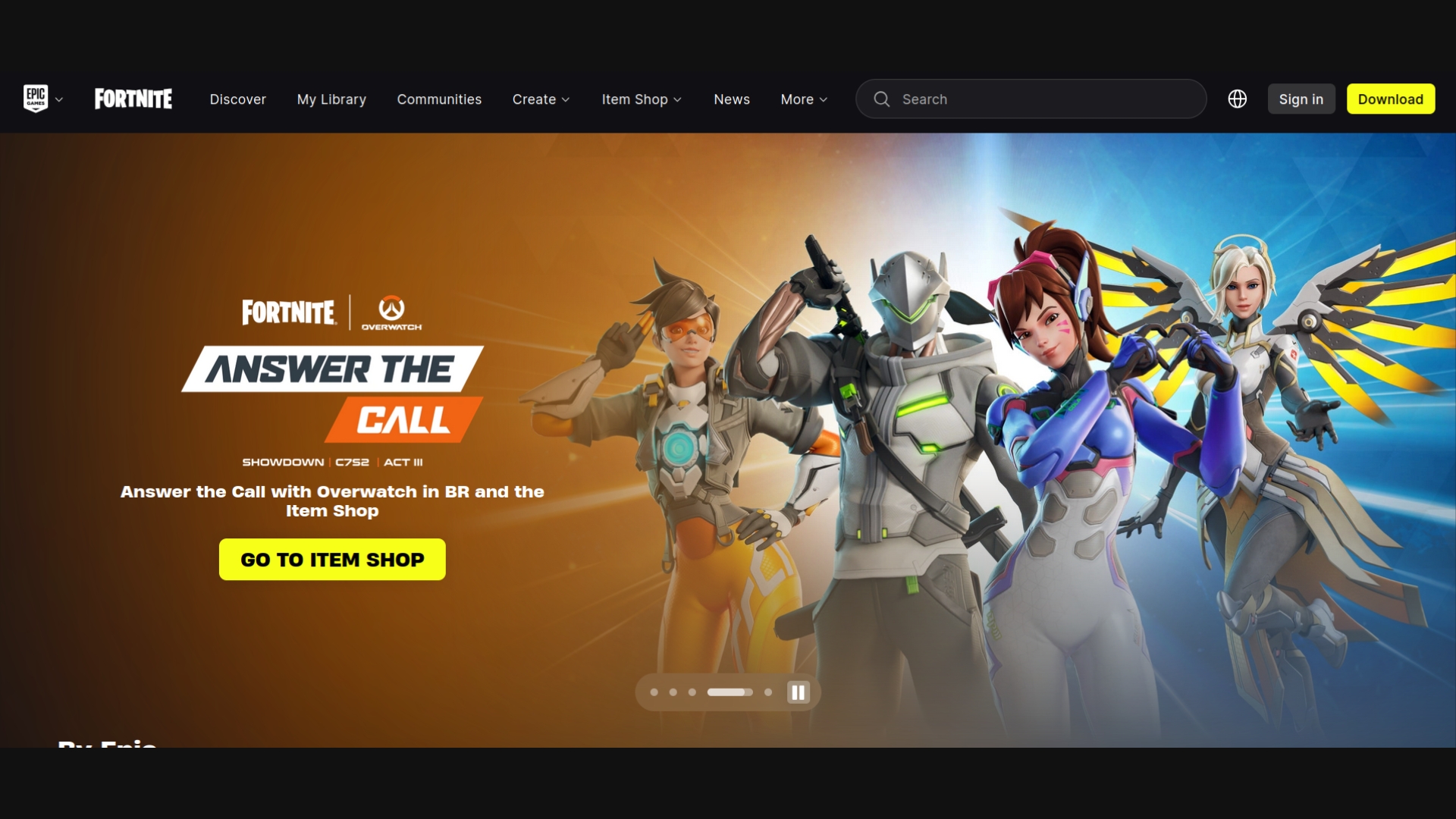
The good news is that Linux gaming is so much better today that it used to be in the past, especially with Steam and Proton.
Will My Stuff Still Work?
If by "stuff" you mean hardware like printers, Wi-Fi, Bluetooth, headphones, microphones, or monitors, there actually a safe way to test all of that before you even install Linux.
One of the things that you'll do before you install Linux, is to create a Linux Bootable USB Flash Drive. Sometimes called a Live Environment USB. What this does is it lets you boot into Linux temporarily without changing anything on your computer. It uses your RAM to run this temporary version of Linux. So, when you're done using Linux, you simply restart your computer, with the Live Environment USB removed, and you'll boot back into your original operating system just like before.
While you're booted into the USB Flash Drive Linux LIve Environment, this is the perfect time to test out your hardware. Check your Wi-Fi, check your speakers - you can do both by trying to play a YouTube video. If you can, and you can hear the video play, then your Wi-Fi and your speakers work, and will work when you switch to Linux. Continue testing out your hardware until your satisfied.
If by "stuff" you mean software, then it depends. Some applications have Linux version, and some don't. For example: VS Code works on Linux, and Adobe Photoshop des not. In cases like that, you may need to use a Linux alternative like GIMP, or settle for a web aoo like Photopea.
Can I Ruin My Computer?
Realistically, most Linux problems are software problems, not hardware problems.
Like, for example, let's say that you installed Linux, but you don't boot into your new Linux desktop. You can always reinstall the Linux distro from the USB Live Environment and see if that fixes the problem. Or, you can use your Windows Media Installer USB to reinstall Windows and go back to Windows if that's what you'd prefer.
I always recommend that new Linux users create this Windows Media Installer USB just in case for whatever reason, they decide to go back to Windows. With this USB, they'll have a way to go back to Windows.
As long as you take some basic precautions and follow instructions carefully, then switching to Linux is generally safe.
What If I Hate Linux?
Then you go back to Windows, seriously. That's why I always recommend creating a Windows Recovery Drive so you have a way to go back to Windows for whatever reason. Linux is not a permanent life decision. I would recommend researching on creating a similar recovery for Mac as well.
You can try Linux, experiment, and if you feel that Linux is just not right for you, you can return to Windows or Mac by creating the media to go back to Windows or Mac, just in case.
Which Distro Should I Choose?
Linux Mint.
You should be able to do enough research in order to choose a distro that best fits your needs. Some Linux distros are made with the sole purpose to help new Linux users get started with Linux. This is why those distros get recommended to new users so often.
Please understand, that these "beginner Linux distros," are not limited in any way. They're not "training wheels distros." They're full blown Linux systems capable of doing everything Linux can do. So, when I tell you to choose "Linux Mint" as your first distro, it's because Linux Mint is specifically made to help new users get on board with Linux. This is what Linux Mint was built for. But Ubuntu, Debian, ZorinOS, ElementaryOS, and Pop!_OS are all great beginner distros.
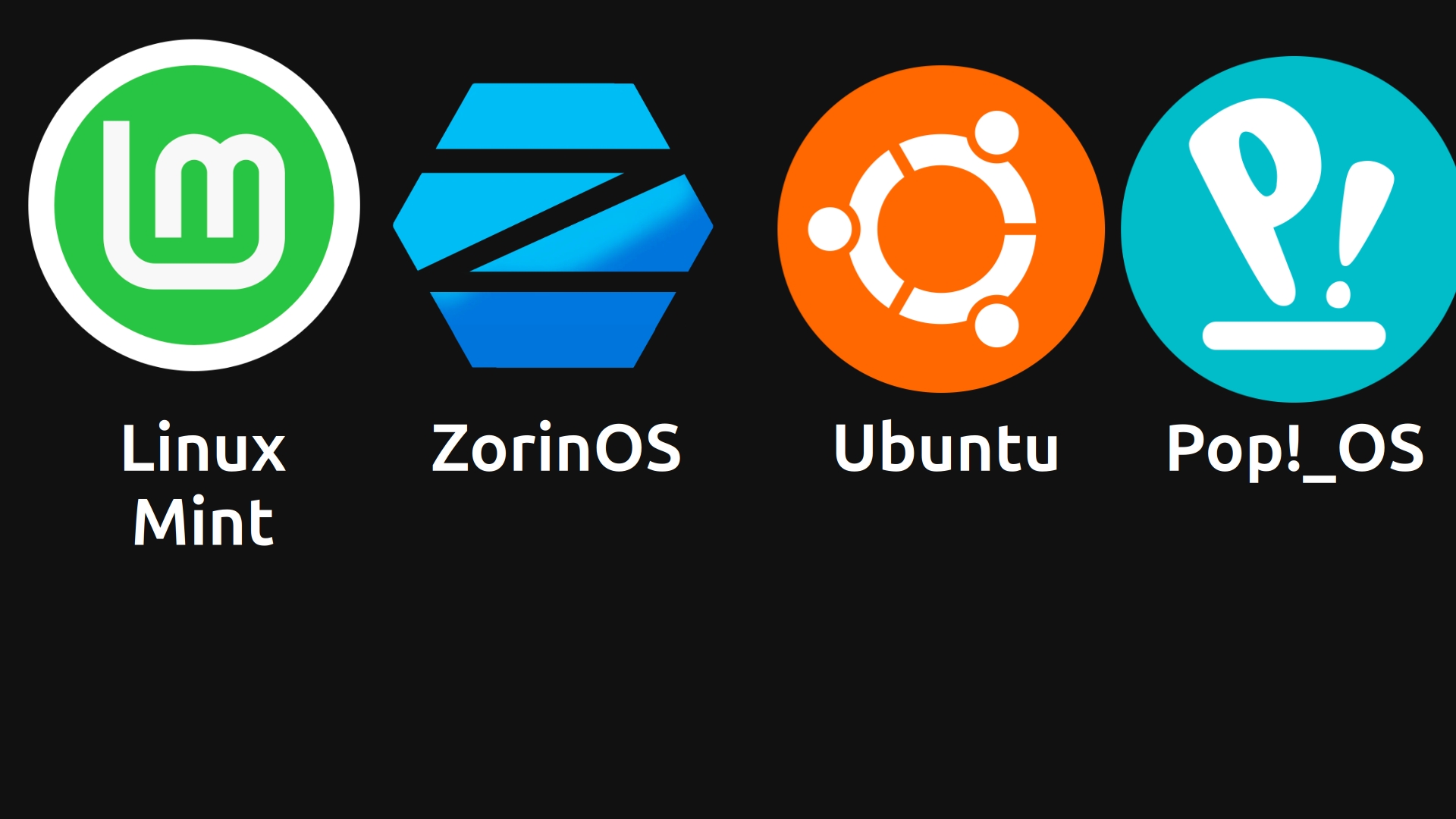
But remember, your first distro does not have to be your forever distro. you can always change distros at any time. You might want to explore different Linux distros before you settle on just one. Linux Mint is a great candidate for a forever distro because it works very well. I can't say enough about it, but there are always other Linux distros to choose from.
What Is A USB ISO Thingy?
The USB ISO thingy is your literal key to Linux. Let me explain what I mean. When you download a Linux distribution, what you get is usually a file with an .iso extension. This .iso file is basically a digital copy of an installation disc.
To use it, we'll need to put in on a USB Flash Drive, and we need to make that USB Flash Drive with boot capabilities. Applications Like Balena Etcher, Rufus, even the Fedora Media Writer will make a bootable USB for you with the .iso file on it as well.
You plug in a USB Flash Drive, select that .iso file that you downloaded, and let the application create the bootable USB for you. Once it's finished, you can restart your computer, open the boot menu, and boot from the USB Flash Drive.
This launches the Linux Live Environment. That’s right, you're live on Linux. From here, you'll want to test your hardware to make sure it all works, you can explore Linux, and once your satisfied and ready, you can install Linux. Or if you decide Linux isn't for you, simply shutdown your computer, take out the USB Flash Drive, and restart your computer again, and it will be like nothing happened.
But if you decide to install Linux, keep the Live Environment USB plugged in your computer. You should be able to install Linux right from your Live Environment USB. You'll want to keep it as it can act as a recovery drive, or a troubleshooting drive if you have any problems later on.
Do I Lose Windows?
Only if that’s what you want to do. Some people completely replace Windows with Linux. Others install Linux beside Windows in a dual-boot setup. Both options are valid.
Not switching to Linux at all and staying with your original operating system is valid as well.
If you're nervous about switching, do yourself a favor, and create a Windows Installation Media Drive (and Mac equivalent as well) before switching to Linux so that you can always go back if you wish.
How Do I Install Programs?
Most Linux distributions include some kind of Software Center or App Store. You usually install applications by searching for them and clicking install, just like on a phone.
You can use the Terminal to install applications, but you don't have to. Linux Mint has a fantastic Software Center that’s included with the distro. So does ZorinOS. Linux Mint, ZorinOS, Pop!_OS, Debian, Ubuntu, ElementaryOS… all of these have a Software Center included.
WHy Do Linux Users Recommend Different Distros?
Mostly because Linux users have different preferences and different experiences. And they're just trying to point you to the distros that they had success with. But not every experience is going to be the same each and every time. Some distros focus on simplicity. Some focus on customization. Some focus on stability. Some focus on the latest and greatest versions of software.
But for beginners, the important thing isn’t choosing the “perfect” distro. It’s choosing a distro that helps you get started with Linux to lead you to your “perfect” distro.
For example, Linux Mint is much easier for beginners than something like Arch Linux. Could you start with Arch? Sure you could. But you might have more of a frustrating experience with Arch if you’re not sure what you’re doing. That’s why beginner distros are recommended to new users more often.
I think it’s important not to overwhelm yourself with a complicated distro until you get used to Linux and feel comfortable. It might turn you away from Linux altogether, and that wouldn’t be fair to Linux, and it wouldn’t be fair to you, either.
Will Linux Delete My Files?
Not unless you tell it to. Linux is not going to randomly delete your files. Most file loss happens because, backups aren’t made, drives weren’t formatted correctly, or mistakes were made during installation.
It’s not like, Linux is thinking, “you know, Bob seems a little heavy on the keyboard lately. I’ll show him. I’ll delete all his files!” Linux isn’t going to randomly just start deleting your files, but if there’s something wrong with your computer and you’re not aware it, then there might be a chance of you losing your files.
That’s why backups matter. Your files should exist in at least two places: On your computer, and on an external hard drive.
Personally, I back up my files to an external hard drive every week. You don’t need an advanced or complicated backup system. You just need a reliable one.
Do I Have To Use The Terminal?
No, not so much in the beginning. You’re already learning a new operating system and new applications. There’s no reason to overwhelm yourself immediately with Terminal commands.
That said, the Terminal is powerful and useful. And it’s something that you’ll eventually want to become familiar with at some point. So the Terminal is something that you don’t need to worry so much about in the beginning, but it is something that you’ll want to become familiar with when you’re ready.
There are so many distros with buttons in different places. Linux is not one-size fits all like Windows and Mac are. The Terminal kind of is the base language that all Linux distros can understand. Because of this, you’ll find a lot of troubleshooting instructions are written in Terminal commands.
You don’t want to find yourself simply typing in Terminal commands blindly. You’ll want to have some idea of what they do, or at least what they stand for.
So, you don’t have to worry about the Terminal so much when you first install Linux, but it is something that you’ll want to become familiar with over time.
Final Thoughts
Switching to Linux isn’t as scary as many people think it is. But it does require: some research, some patience, and some realistic expectations. But if you’re curious about Linux, there’s never been a better time to try it.
And remember: Dude, you’re not choosing a religion. You are choosing an operating system. If Linux works for you, great. If it doesn’t, that’s okay too. The important thing is understanding your options and making an informed choice.
That's going to be all from me for today. If you watched the video, or you're reading this blog post, I hope you found this helpful. Until next time, take care.
Comments